How to download videos on your phone
Updated October 7, 2026
Top Video Downloader is a desktop app for Windows, macOS on Apple Silicon and Linux; there is no Android or iPhone version today. To get a video onto your phone, send the link to yourself, download it on a computer and move the file over. Join the waitlist to hear when a phone version ships.
Download Top Video Downloader
Free: 3 downloads without an account, then 10 a day up to 720p, no ads. 4K and unlimited downloads come with a subscription, a lifetime plan or credits.
Top Video Downloader is a desktop app
It runs on Windows, macOS and Linux. Send the link to yourself to open it on your computer, or join the waitlist for a phone version.
- Android
- No app
- iPhone and iPad
- No app
- Runs on
- Windows 10/11 (x64), macOS on Apple Silicon, Linux x86-64
- Phone version
- Waitlist at the end of this page
Is there a Top Video Downloader app for Android or iPhone?
No. We don't publish an APK, and we have no app on Google Play or the App Store. If you come across a “Top Video Downloader” for phones, it isn't ours, even if the name matches; the name is generic and several unrelated projects use it. The real app comes only from top-video-downloader.com and our GitHub releases page.
How to download a video to your phone using a PC
- 1
On your phone, open the video and copy its link: Share → Copy link.
- 2
Send the link to yourself, for example to Telegram's Saved Messages, WhatsApp “Message yourself” or your email.
- 3
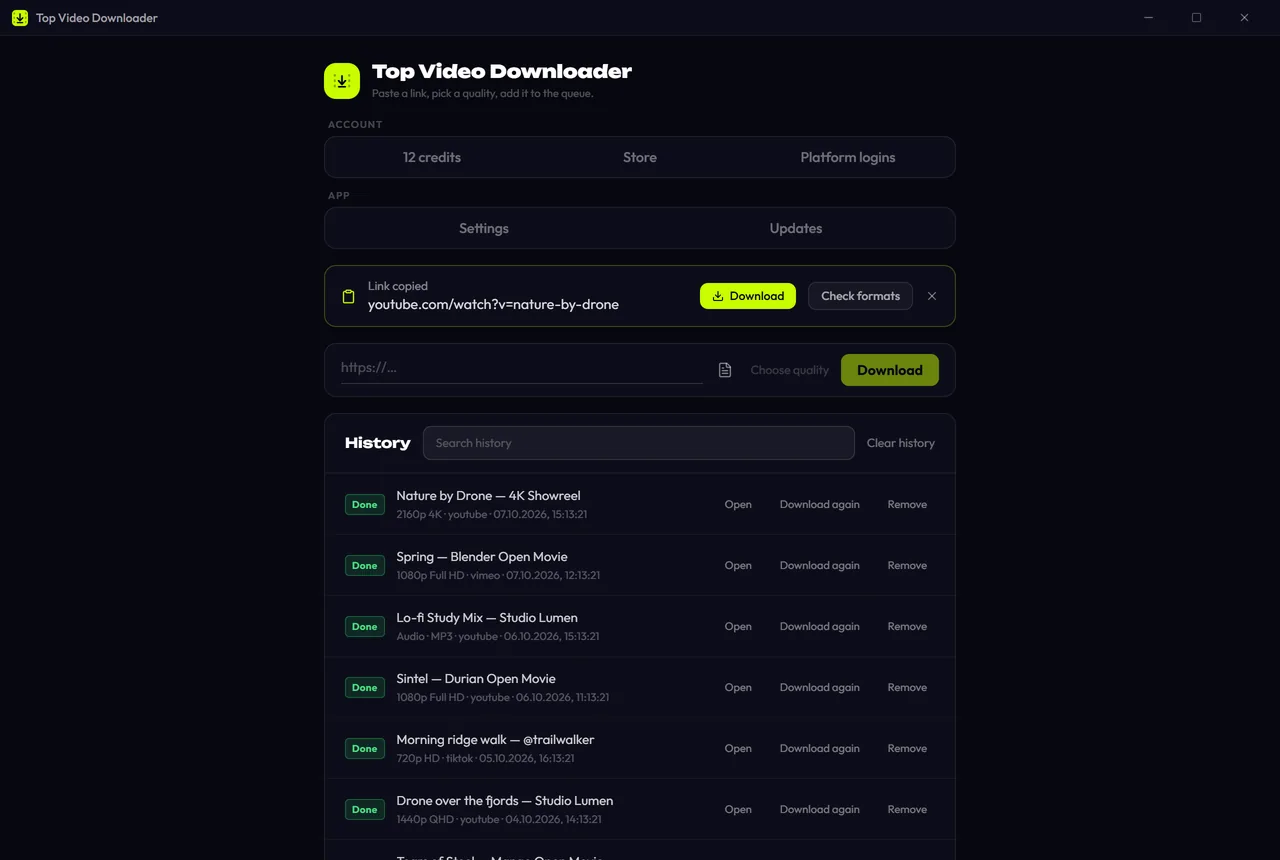
Copy the link on your computer. Top Video Downloader 2.0 notices a copied link when you switch back to its window and offers to download it.
- 4
Pick a quality. For a phone screen, 720p or 1080p is plenty: smaller files, hardly any visible difference. A free account gives you 10 downloads a day up to 720p, and there's a one-click “up to 720p” preset.
- 5
Move the finished file to your phone using one of the methods in the table below.
How to move the video from your PC to your phone
| Method | Android | iPhone |
|---|---|---|
| USB cable | Choose “File transfer” mode, then copy the file into Movies or DCIM | Awkward; use another method |
| AirDrop | — | From a Mac: right-click the file → Share → AirDrop |
| Quick Share | From Windows with Google's Quick Share app | — |
| Cloud storage | Google Drive, OneDrive and others | iCloud Drive, Google Drive and others |
| Telegram Saved Messages | Send the file to yourself and save it | Send the file to yourself and save it |
On iPhone, a video in Files or Telegram goes into Photos like this: open it → Share → Save Video. Telegram caps file size (2 GB without Premium), so long high-quality videos are easier to move through cloud storage.
If the video won't play on your phone
The app saves video as MP4 (H.264 + AAC), which plays on any phone. When the source can't be stored in MP4, it saves an MKV instead, and the built-in player on iPhone and some Android phones won't open it. The free VLC app for Android and iOS plays it fine.
Why we don't recommend random APK downloaders
Most YouTube downloaders aren't on Google Play, because store rules don't allow apps that break YouTube's terms. So they're spread as APK files from third-party sites, and that's where the risk starts.
- Installing an APK means allowing “Install unknown apps”, which skips the store's review.
- Popular downloaders are often repackaged with adware or worse, under the same name and icon.
- Red flags: requests for Accessibility, device admin, notification access or SMS. A video downloader needs none of these.
- Already installed a dubious APK? Uninstall it, run a Google Play Protect scan and turn off “Install unknown apps” for your browser.
On iPhone, App Store “video downloaders” are often file managers with a built-in browser and a pricey weekly subscription, so read the terms before you tap “Try free”. Download websites on phones bring their own pop-ups and notification spam; see how to spot a safe downloader and online sites vs a desktop app.
Join the waitlist for the phone version
We're not giving a date for a phone version; first we want to know how many people want one, and on which platform. Pick Android or iPhone and leave your email. When a phone version is released, we'll send you one email. No newsletter.
Is there a Top Video Downloader APK?
No. We don't make an APK and don't publish the app on Google Play or the App Store. Any APK using the name wasn't made by us, and we don't recommend installing it. The app exists only for computers: Windows 10/11, macOS on Apple Silicon and Linux x86-64. Get it from top-video-downloader.com or our GitHub releases page.
Can the PC app download a video straight to my phone?
No. The app saves files to a folder on your computer, by default your Downloads folder, which you can change in Settings. From there, move the file to your phone with a USB cable, AirDrop or Quick Share, cloud storage or Telegram's Saved Messages.
Does it work on an iPad or Android tablet?
No. There are builds only for Windows x64, macOS on Apple Silicon and Linux x86-64, so the app doesn't run on iPads or Android tablets. The same workaround applies: download on a computer, then move the file. If you want to hear about a mobile version, leave your email in the waitlist on this page.
Is the free plan enough for phone videos?
Usually, yes. A free account gives you 10 downloads a day up to 720p, which suits a phone screen. Without an account you get 3 trial downloads. Audio-only downloads (MP3 and other formats) also count within the free daily quota.
Read next
- How to tell a safe video downloader from a malicious oneA safe video downloader comes from its official site, installs only itself, shows no ads or fake buttons, asks for no permissions it doesn't need and publishes checksums you can verify. Most malware around video downloading hides in bundled installers, look-alike download buttons, notification spam and browser extensions with broad permissions.
- Online video downloader vs desktop appAn online downloader is fine for one short clip: nothing to install, and it works on a phone. A desktop app such as Top Video Downloader is better when you want 1080p or 4K with sound, whole playlists, videos behind a login and no ads. Here is how the two compare on quality, safety, privacy, batch downloads and speed.
- How to verify Top Video Downloader and get past SmartScreenWindows SmartScreen and macOS Gatekeeper warn about Top Video Downloader because its installers are not code-signed yet, not because a threat was found. You can confirm the file is the one we published by comparing its SHA-256 checksum with SHA256SUMS on the GitHub release. In-app updates are checked automatically with an Ed25519 signature.
- How to download YouTube Shorts on PCPaste a `youtube.com/shorts/…` link into Top Video Downloader and the Short saves as an MP4, with no YouTube sign-in. Qualities are labeled by frame height, so a Full HD Short (1080×1920) shows as “1920p” and costs 1 credit. Free covers versions up to 720 pixels tall, which means 360×640, plus MP3 audio.
- How to download Instagram Reels and videos on PCTop Video Downloader saves Instagram Reels and video posts to your PC as MP4, and version 2.0 can grab a whole profile, up to 300 videos. Instagram shows most videos only to signed-in users, so you sign in to Instagram once inside the app. That login stays encrypted on your computer and never reaches our servers.