Download only part of a video
Updated October 7, 2026 · tested with version 2.0.0
Top Video Downloader 2.0 can download just part of a video instead of the whole thing. In the quality picker, tick Download only a part, type a start and end time (90, 1:30 or 1:02:03) or click a chapter. Cuts land on the nearest keyframes with no re-encoding, so the edges can shift by a second or two.
- How to set it
- a from/to time, or one of the video's chapters
- Time format
- seconds (
90), minutes (1:30) or hours (1:02:03) - Precision
- nearest keyframes, no re-encoding, no quality loss
- Limit
- the clip must end within 24 hours of the video's start
- Cost
- same as a normal download at that quality: free up to 720p within your quota, 1 credit above
How to download a YouTube clip by start and end time
- 1
Paste the video link and click Download to open the list of formats.
- 2
Choose the quality and folder, and edit the file name if you like.
- 3
Tick Download only a part. You get from and to fields and, if the video has chapters, a row of chapter buttons with their start times.
- 4
Click a chapter to fill both fields, or type the times yourself, for example
1:02and2:31. An end time past the video's length is simply clamped to the end. - 5
Click Add to queue. The queue row gets a "clip" label, and the file name gets the range added, like
Blender Studio - Spring (1-02…2-31).mp4.
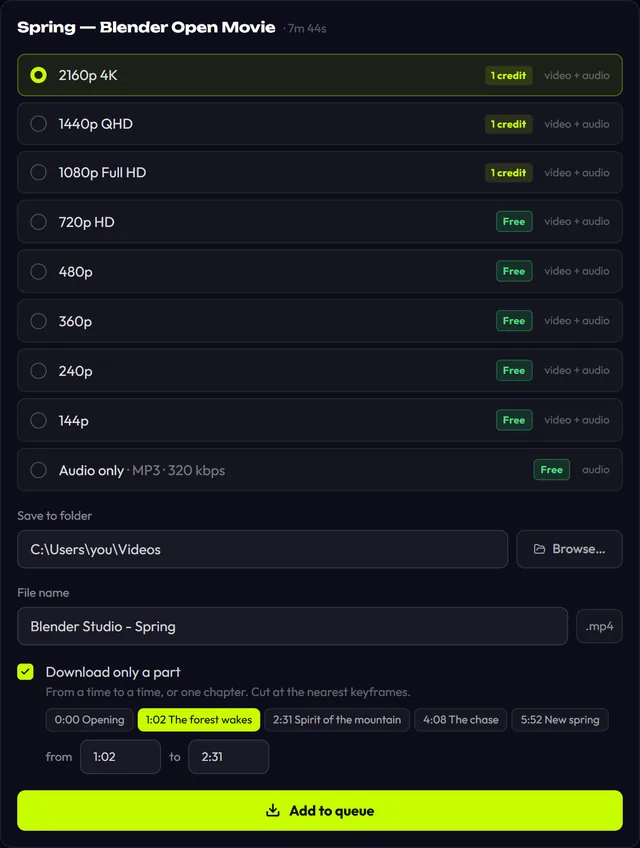
Typos get a plain answer: "Write times like 1:30 or 1:02:03", "The end must come after the start" or "The start is past the end of the video". Minutes and seconds after a colon can't go past 59, so 1:75 is rejected, but 135 on its own works and means 2 minutes 15 seconds.
Why the clip starts a little early: keyframes explained
Online video is compressed so that a complete picture is stored only every so often, with just the changes recorded in between. Those complete pictures are keyframes. You can't slice a file at exactly 1:02.000 without re-encoding, because the frames before the next keyframe wouldn't have a picture to build on. So the app cuts at the nearest keyframes and copies the video and audio as they are.
- The upside: zero quality loss, and a short clip from a long video is fetched and saved quickly. Nothing gets re-encoded.
- The trade-off: the start and end can move. By how much depends on the video; keyframes are usually a few seconds apart.
- Tip: if you need frame-exact edges, grab 3–5 seconds extra on each side and trim in any video editor. It's quick, since the file is already small.
Clip in the app or download the whole video and cut it?
| Clip in Top Video Downloader | Download all, cut in an editor | |
|---|---|---|
| What you download | Only the part you need | The whole video, even for one minute of a three-hour stream |
| Quality | Same as the source, no re-encode | Depends on the editor's export settings |
| Edge precision | Nearest keyframe, a second or two | Exact frame |
| Effort | One tick box, two fields | Download, open an editor, trim, export |
Download Top Video Downloader
Free: 3 downloads without an account, then 10 a day up to 720p, no ads. 4K and unlimited downloads come with a subscription, a lifetime plan or credits.
Top Video Downloader is a desktop app
It runs on Windows, macOS and Linux. Send the link to yourself to open it on your computer, or join the waitlist for a phone version.
Where clips work and what they cost
- Sites. The from and to fields aren't tied to YouTube. Chapter buttons only appear when the site provides chapters, as YouTube does.
- Audio only. Clips work in audio-only mode too: a chorus, a podcast segment or a quote from a lecture as an MP3. The YouTube to MP3 guide covers the audio formats.
- One video at a time. Clips are set in the single-video quality picker; playlists don't have a cut option.
- Cost. A clip counts as one download at the quality you picked. Up to 720p and audio are free within your 10 downloads a day; 1080p, 2K and 4K take 1 credit, even for a ten-second clip. See the pricing page.
- Want the sponsor read gone rather than one part kept? On YouTube that's what SponsorBlock is for: it cuts sponsor segments out of the whole video.
Clips are good for a quote in a presentation, a teaching excerpt, or one moment from a long stream you don't want to pull down in full. Only download what you have the right to and follow each platform's terms; see is it legal to download videos.
Can I download just part of a YouTube video?
Yes. In Top Video Downloader 2.0, open the video's quality picker, tick Download only a part, and enter a start and end time or pick a chapter. Only that section is downloaded, with no re-encoding. It works in the Windows, macOS on Apple Silicon and Linux versions of the app.
Why doesn't my clip start at the exact second I typed?
Because the app cuts at the nearest keyframes instead of re-encoding the video. That keeps the original quality and makes saving fast, but an edge can move by a few seconds. If you need frame-exact cuts, take a few seconds extra on each side and trim the small file in a video editor.
What time format does the clip field accept?
Three forms: plain seconds (90), minutes and seconds (1:30), or hours, minutes and seconds (1:02:03). Values after a colon must be 00 to 59. If the end time is later than the video's length, the app clamps it to the end of the video for you.
How much does downloading a clip cost?
The same as the whole video at that quality. Up to 720p and audio are free within the 10 daily downloads of a free account. At 1080p, 2K or 4K a clip takes 1 credit, and a subscription or lifetime plan has no limit. The length of the clip doesn't change the price.
Can I cut an audio-only clip as MP3?
Yes. Pick audio only in the format list, tick Download only a part and set the times. You get an audio file in the format chosen in Settings: MP3 by default, or M4A, Opus, FLAC or WAV. Useful for a podcast segment, a lecture excerpt or a song's chorus.
Read next
- Download whole playlists, channels and profilesTop Video Downloader 2.0 downloads whole playlists, YouTube channels and TikTok or Instagram profiles to your computer. Paste the link and the app lists up to 1,000 videos; tick all, none or the first N, set one quality cap, and each video counts as one download. Free accounts get 10 a day up to 720p.
- SponsorBlock: download YouTube videos without sponsor segmentsTop Video Downloader 2.0 can strip sponsor reads that creators record into their YouTube videos from the files you download. Using the community SponsorBlock database, it cuts sponsor segments, self-promotion and like-and-subscribe reminders, or marks them as chapters instead. It works on YouTube only and is off by default.
- How to download YouTube videos on your PCCopy the video link, paste it into Top Video Downloader, click Check formats and pick a quality. The MP4 lands on your disk. Public videos need no YouTube sign-in. A free account gives you 10 downloads a day up to 720p, MP3 audio included, while 1080p, 1440p and 4K cost 1 credit per video.
- How to convert YouTube to MP3 on your PCTop Video Downloader pulls the audio out of any YouTube video and saves it as MP3, or as M4A, Opus, FLAC or WAV. On a free account audio has no quality cap and counts toward your 10 daily downloads. One catch: YouTube's own audio is about 130 kbps, so a 320 kbps MP3 is bigger, not better.
- Top Video Downloader pricingTop Video Downloader is free for 10 downloads a day up to 720p with an account, plus 3 trial downloads without one. For 1080p, 4K or more downloads, buy credits (1 credit = 1 video at any quality, $4.99 for 10), a subscription from $4.99 a month, or lifetime for $34.99. Crypto only, no auto-renewal.